
CueFlow TV: HDMI Overlay Timer Control (Live Countdown + Session End)
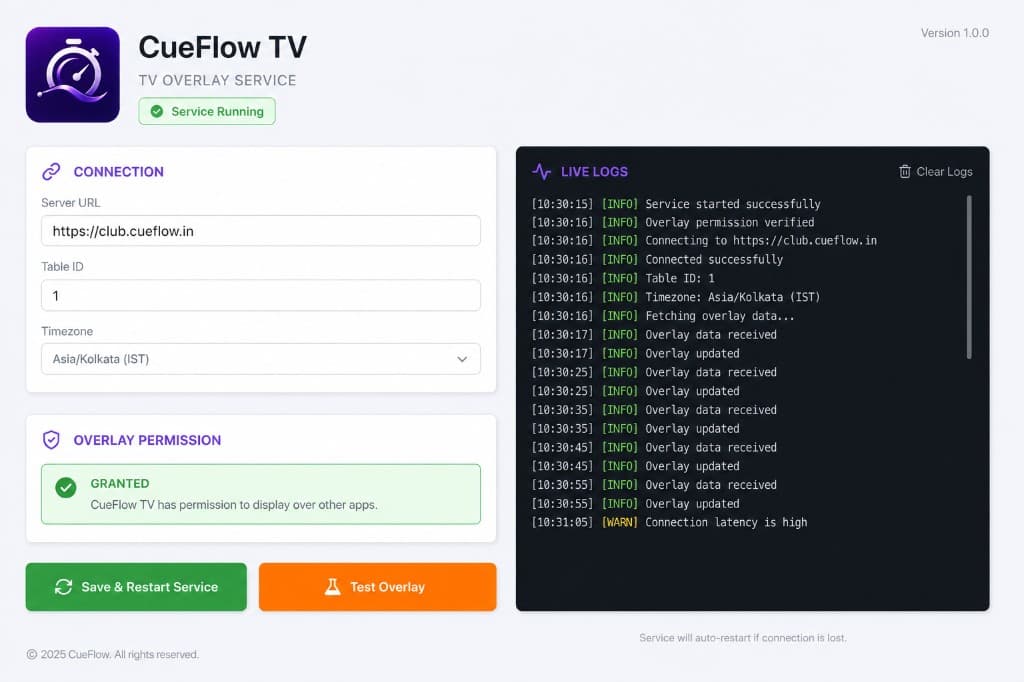
Start a session timer from CueFlow. CueFlow TV then overlays a small top-left countdown warning on your TV, and automatically switches to a session-ended overlay when time ends. Works with any HDMI-connected device (PS/Xbox examples included).
Quick answer
Install CueFlow TV on the TV, connect it once, then start a session timer from CueFlow. The TV shows the countdown warning and the session-ended overlay automatically.
💡 Managing a Snooker Club?
CueFlow automates billing, member management & analytics. 7-day free trial, setup in 2 hours.
What CueFlow TV does
It drives an on-screen HDMI timer warning and a session-ended overlay on your TV based on timers started in CueFlow.
Start setup via WhatsAppInstall CueFlow TV on your TV
Install the CueFlow TV app on the TV and complete the setup/connection so it can receive overlay updates.
Start a console/game session timer in CueFlow
From CueFlow, start the session timer for the table/game (example: 60 minutes) and set any reminders.
Watch the top-left warning overlay
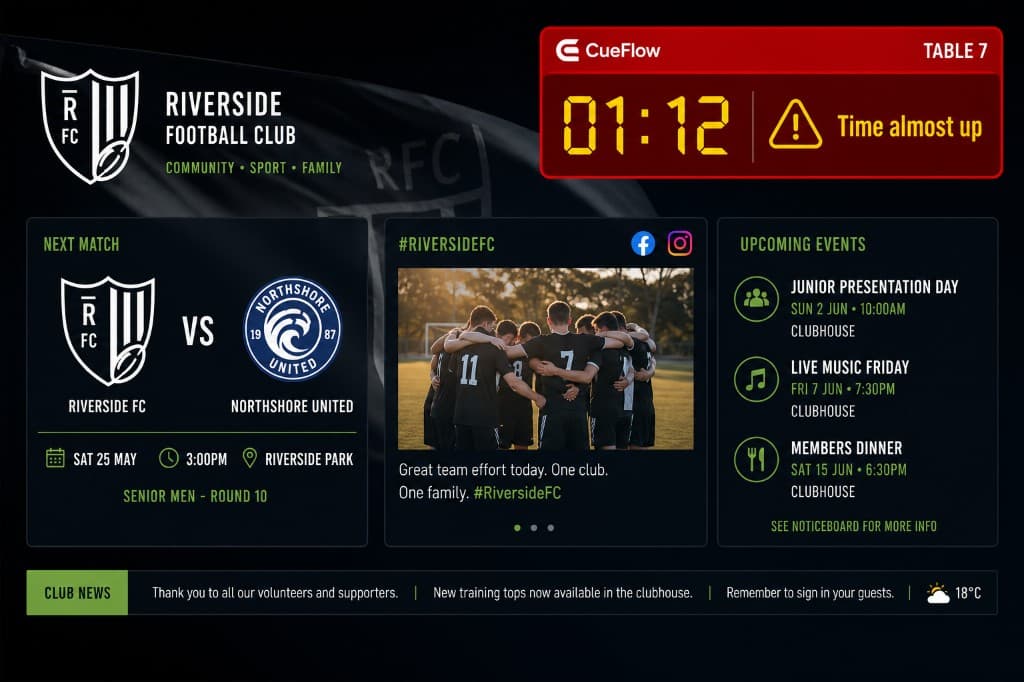
CueFlow TV shows a small countdown warning overlay (top-left) on the TV as the timer approaches the end.
Show session ended overlay and stop
When time ends, CueFlow TV displays the session-ended overlay and stops the session.
What staff sees on TV
You get a visible reminder on the TV (top-left) so customers know the session is ending. When time ends, the session-ended overlay appears automatically.
Frequently asked questions
Does CueFlow TV work only with PS5/Xbox, or any HDMI device?
CueFlow TV works regardless of what HDMI device is connected (PS/Xbox are examples). The overlay is rendered on the TV and updates when the session timer starts, warns near the end, and then shows the session-ended overlay.
What exactly shows on the TV during a session?
CueFlow TV displays a small countdown warning overlay (top-left) while the session is running, and when time ends it switches to a session-ended overlay and stops the session.
Can I set a reminder like “60 minutes” before stopping?
Yes. In CueFlow you set the session duration (example: 60 minutes) and reminders. CueFlow TV then drives the on-screen countdown and session-end overlay based on that session timer.
Do I need technical knowledge to set up CueFlow TV?
No. Your CueFlow onboarding includes steps to install CueFlow TV on the TV, connect it, and test timers. Most venues are ready quickly, and you can message support on WhatsApp if anything needs adjustment.
Ready to Transform Your Club?
Join 500+ clubs using CueFlow. 7-day free trial, no credit card required.